
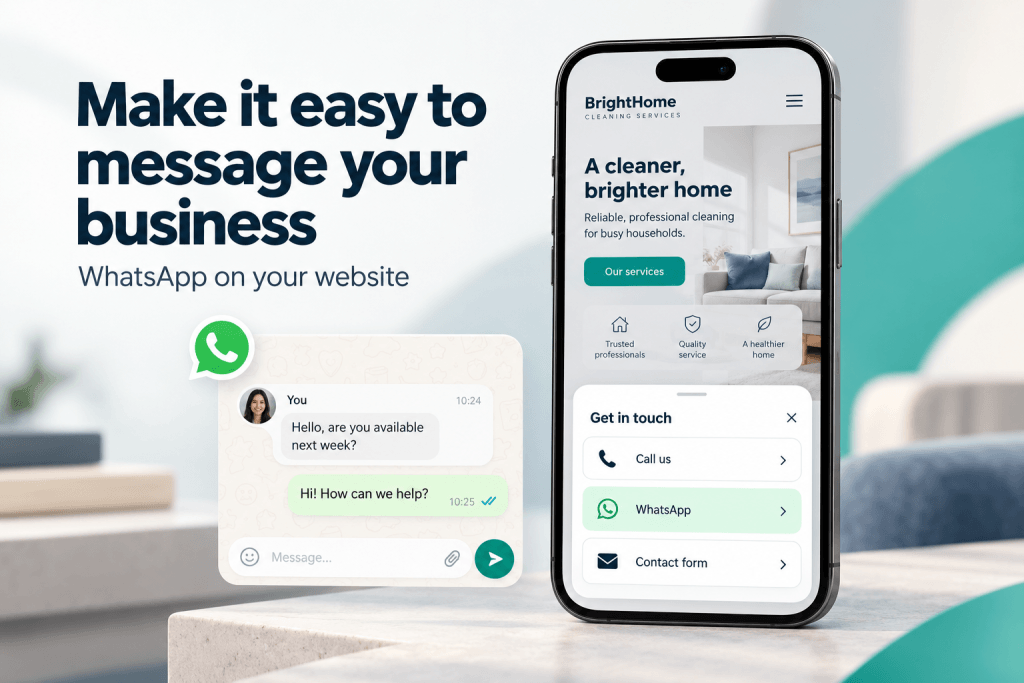
How to Add a WhatsApp Button – A visitor has read about your services and has a question. They might want to check availability, explain what they need or ask whether you cover their area. Giving them a clear way to message your business can make that next step easier.
A WhatsApp button connects your website with a WhatsApp conversation. Instead of copying a number and adding it to their contacts, visitors can follow a link to start a chat.
With ReachButton, you can offer WhatsApp alongside calls, email, Messenger and your contact form. Here’s how to set it up and check that visitors reach the right account.
Choose the right WhatsApp number
Use a number connected to the WhatsApp account your business actually monitors.
Before adding it to your website, think about who will answer incoming messages. If enquiries go to a personal phone that is often unavailable, adding another contact channel could leave visitors waiting.
A dedicated business number can help keep customer conversations separate from personal messages. However you organise it, the important point is that the number works and someone checks it regularly.
A WhatsApp website button opens a conversation. It doesn’t provide an automated reply service or guarantee that someone will answer immediately.
Enter your number in international format
In your ReachButton dashboard, open the website you want to configure and enter your WhatsApp number.
Use the country code followed by the number, without the leading domestic zero. For a UK mobile number, that means using 44 instead of the initial 0. You can enter the number with +44; ReachButton formats the WhatsApp link when it creates the contact option.
For example, a UK number beginning 077 would begin +4477 in international format. Don’t enter +44077, because that keeps the domestic zero after the country code.
Check every digit before saving. A correctly formatted number still needs to belong to an active WhatsApp account.
Make the button fit your website
Your contact button should look like part of your website rather than an unrelated addition.
ReachButton lets you choose the main button colour, wording, image and corner position. You can use your business colours for the launcher while keeping WhatsApp clearly labelled inside the contact panel.
Keep the wording simple. “Contact us” works well when the panel offers several ways to get in touch. A short message inside the panel can help visitors understand what to do next.
Use the dashboard preview to check the appearance. Look at the size of your logo, the contrast of the button and whether the wording is easy to read.
Offer WhatsApp alongside other contact options
WhatsApp won’t suit every visitor or every enquiry.
Someone with an urgent question may prefer to telephone. Another visitor might want to send a detailed enquiry through your contact form. Some people simply don’t use WhatsApp.
Offering a choice lets visitors use the channel that suits them. You can include WhatsApp alongside telephone calls, text messages, Facebook Messenger, email and a link to your existing contact page.
Only enable the options you can support. A smaller set of working, regularly monitored channels is more useful than a long list that leads to unanswered messages.
Add the button to your website
Once you have saved your settings, copy the installation code from your ReachButton dashboard.
On a WordPress website, you can paste the code into the Footer section of a suitable script-insertion plugin such as WPCode. Keep any existing code in place and add ReachButton on a separate line.
For a website built another way, follow the platform’s instructions for adding a script near the end of the page or ask the person who manages your site to install it.
Install the code once. If it is already present, changing your WhatsApp number in the ReachButton dashboard doesn’t require you to paste it again.
Test the conversation on your phone
Open your live website on a phone, open the contact button and choose WhatsApp.
Check that it opens a conversation with the intended business account. Send a short test message and confirm that it arrives where you expect.
Then check the desktop experience too. Depending on the visitor’s device and setup, the link may lead to WhatsApp’s browser or desktop options and require them to sign in.
Also check the position of your website button. It should remain accessible without covering navigation, consent controls or important page content.
Keep your contact details current
If your business changes its WhatsApp number, update the saved website settings in ReachButton and test the new conversation.
Each button is attached to the website domain configured in your dashboard. A blog on a separate subdomain needs its own website entry and installation code.
ReachButton includes one seven-day trial per account on one website. Continuing with that website costs £19.95, paid once, with no subscription. Additional websites require a separate purchase.
Explore our WhatsApp button for websites to see how it works, or follow the installation guide when you’re ready to add yours.